
Files, Mail & Calendar – Nextcloud
Nextcloud is your private workspace for files, mail, calendar, contacts and documents — all in one place. You reach it in the browser at cloud.solo.imagit.eu, which is also linked from your dashboard.
Open the web interface
- Go to cloud.solo.imagit.eu and bookmark it.
- Log in with your ImagIT account. You are taken to the login automatically — there is no separate Nextcloud password to remember.
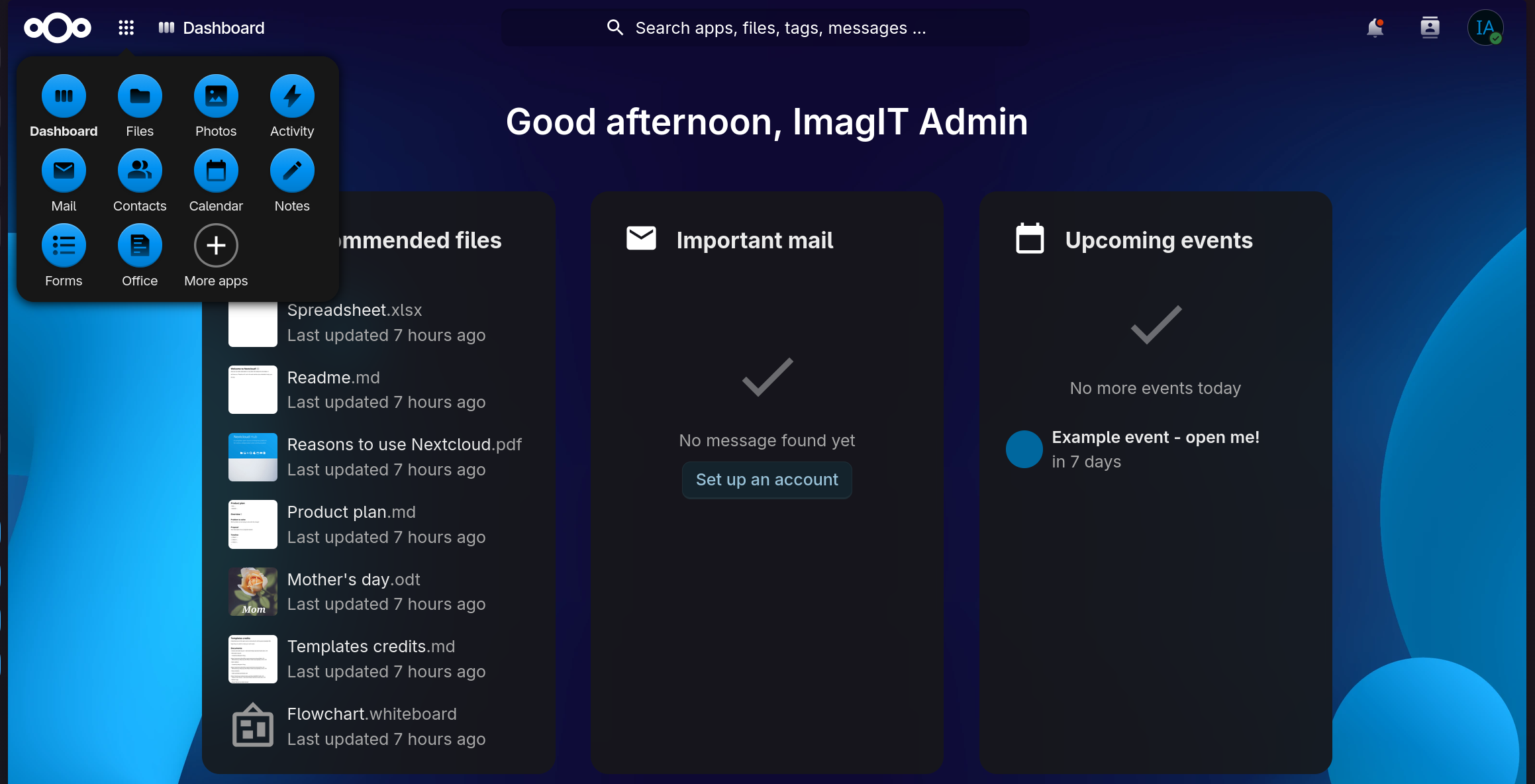
- Use the app switcher (the grid icon in the top-left corner) to move between Files, Mail, Calendar, Contacts, Notes and Office.
Read and send email
Nextcloud includes a Mail app, so you can read and send email without leaving the platform.
- Open Mail from the app switcher.
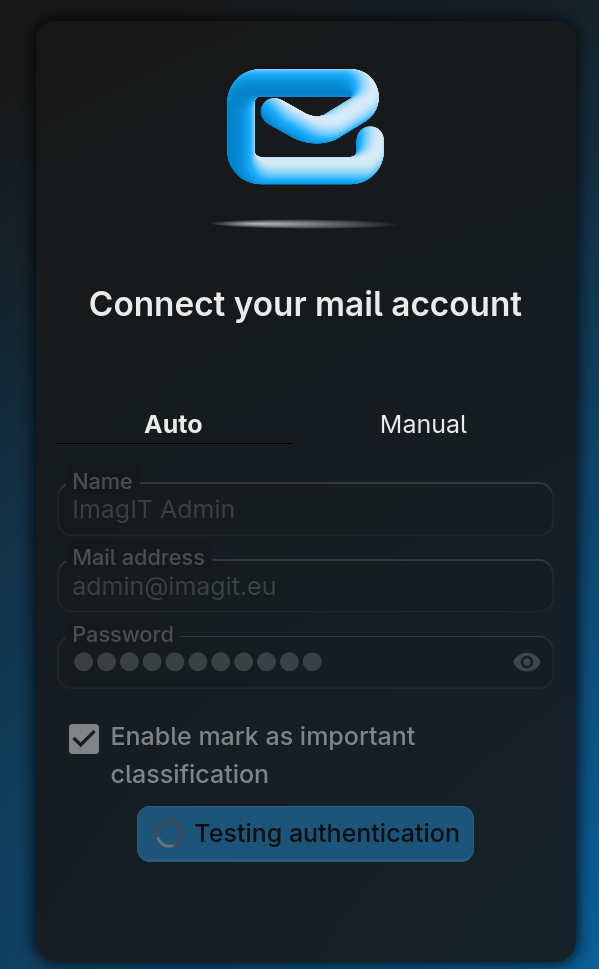
- Choose Add account, select IMAP/SMTP, and enter the server details from your email provider.
- Incoming (IMAP): your provider's IMAP server, usually port
993with SSL. - Outgoing (SMTP): your provider's SMTP server, usually port
587or465.
- Incoming (IMAP): your provider's IMAP server, usually port
- Sign in and your messages appear in Nextcloud.
Tip: Many providers (for example Gmail or Outlook) require a separate "app password" instead of your normal one. If sign-in fails, check your provider's help pages for IMAP/SMTP access.
Use the desktop and mobile apps
Working with the apps is the best experience: your files stay in sync automatically, and your calendar and contacts come along too.
- Download the desktop client for Windows, macOS or Linux from nextcloud.com/install, or the mobile app for iOS and Android.
- Sign in with the server address
cloud.solo.imagit.euand an app password (see App passwords). If asked, you can also sign in through the browser. - Your files sync automatically from then on.
Tip — upload files & back up your phone photos: in the browser, drag files onto the window or use New → Upload file to add files. On your phone, install the Nextcloud app and turn on auto-upload so new photos and videos are backed up to your Nextcloud automatically.
Sync your calendar (CalDAV)
You can keep your calendar in Nextcloud and use it anywhere.
- Open the Calendar app from the app switcher to manage events in the browser.
- To use a calendar app you already have (Thunderbird, Apple Calendar, the calendar on your phone), add it as a CalDAV account:
- CalDAV address:
https://cloud.solo.imagit.eu/remote.php/dav/ - Username: your ImagIT username
- Password: an app password (see below)
- CalDAV address:
- Contacts work the same way via CardDAV at the same address.
App passwords
Because you sign in with your ImagIT account, other apps cannot use your normal login. Instead you create an app password — a one-off password just for that app or device.
- In Nextcloud, open Settings (your avatar, top-right) → Security.
- Under Devices & sessions, enter a name such as "Desktop" or "Phone" and choose Create new app password.
- Copy the password and paste it into the app. You can revoke it at any time from the same screen.