
Code Repository - Gitea
Gitea is your code repository — think GitHub, but hosted for you. You reach it at git.solo.imagit.eu, which is also linked from your dashboard.
Create a repository (web UI)
To quickly create a repository, press the + and choose New Repository. Set the options you want and press Create Repository.
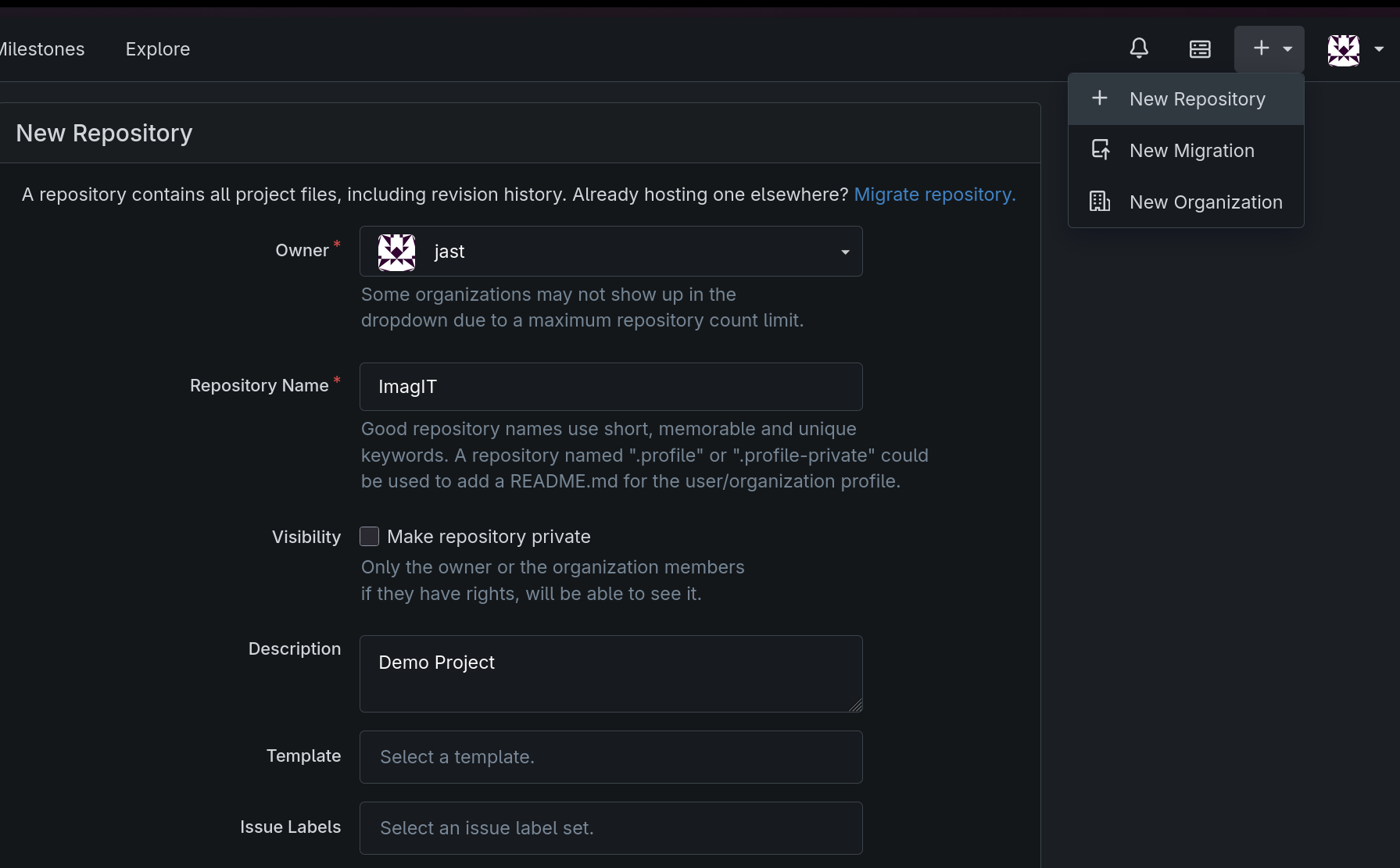
Once the repository has been created, the quick guide gives you a URL you can use to clone it locally.

Create an access token
Authentication over SSH using SSH keys is currently not available. Only authentication over HTTPS works.
To authenticate over HTTPS — required when 2FA is enabled — you need an access token. To create one, open Settings under your profile and go to Applications. Give the token a name. In this example I enabled read and write permissions for the repositories owned by this account, as well as read and write for packages, so images can be pushed and pulled.
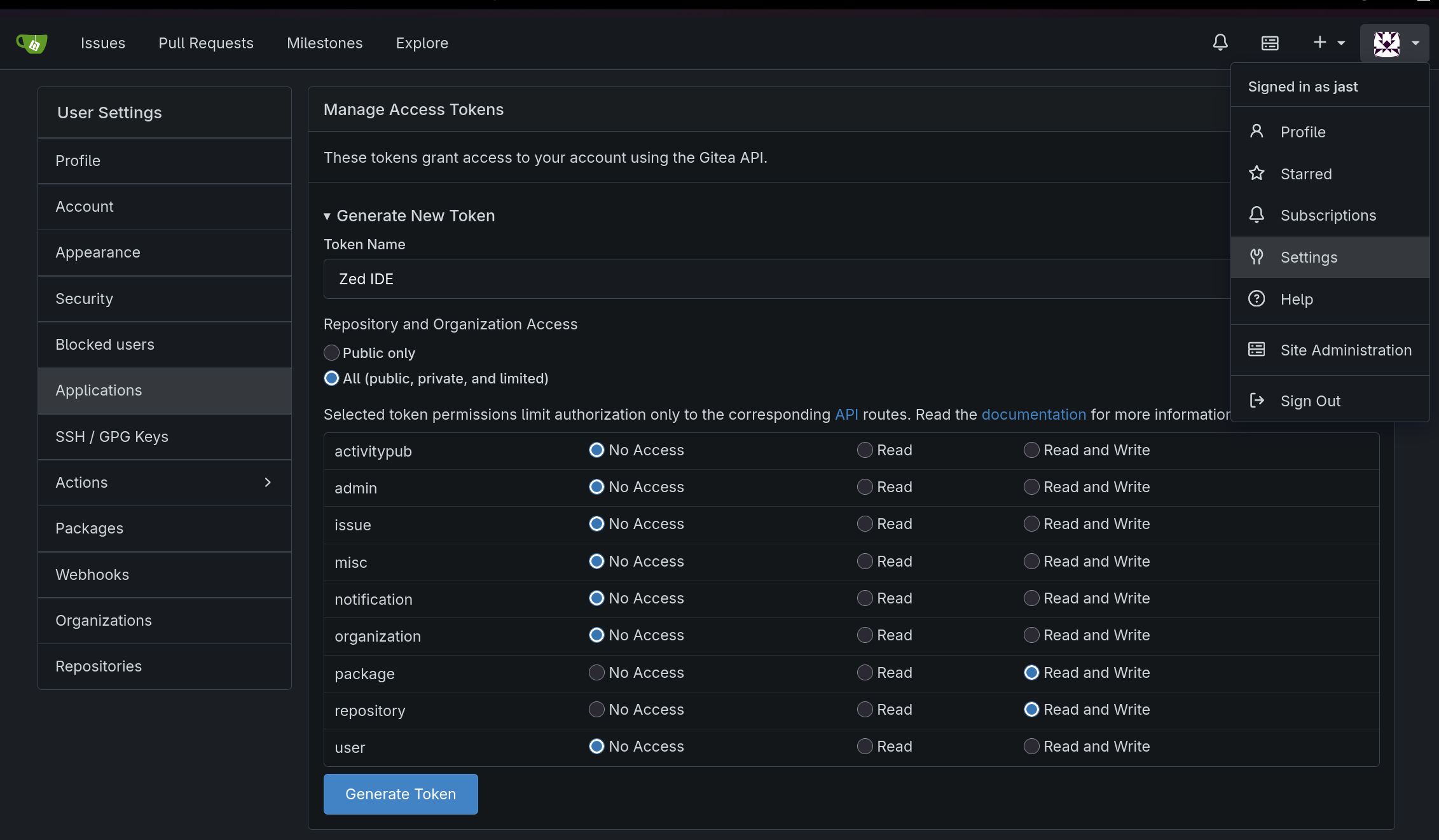
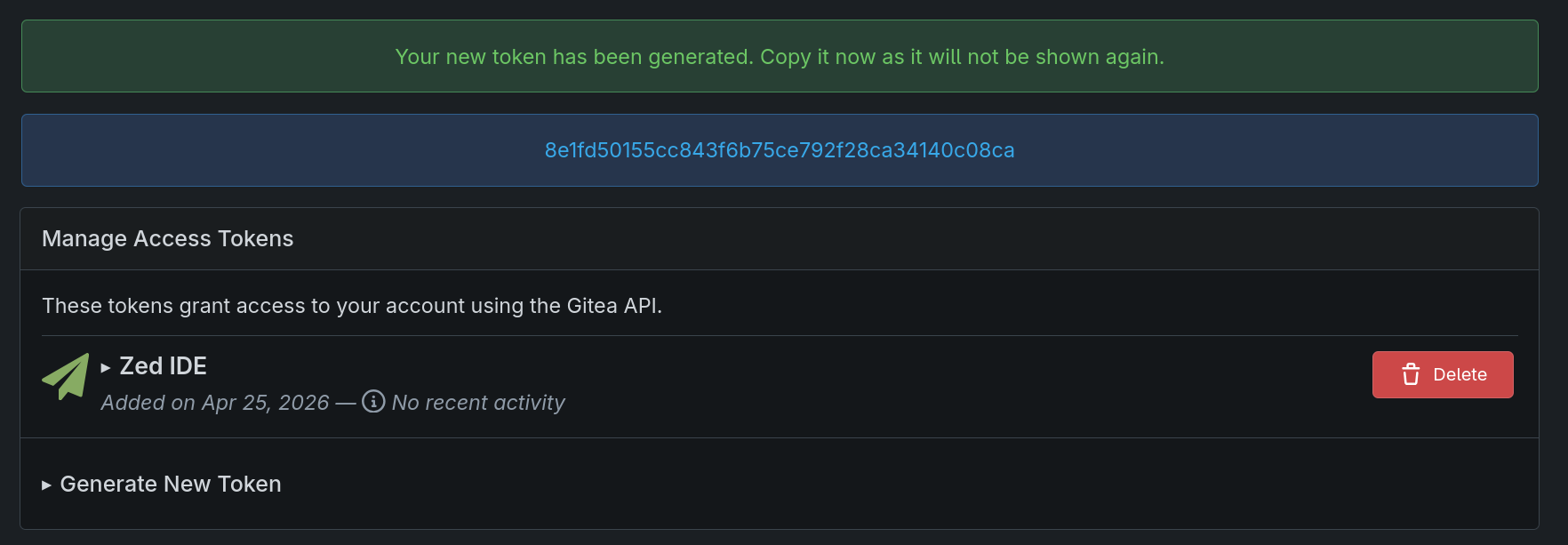
Click Generate Token. This token will only be shown once. Make sure to store it in your favourite password manager ;)
Use the repository with an access token (IDE)
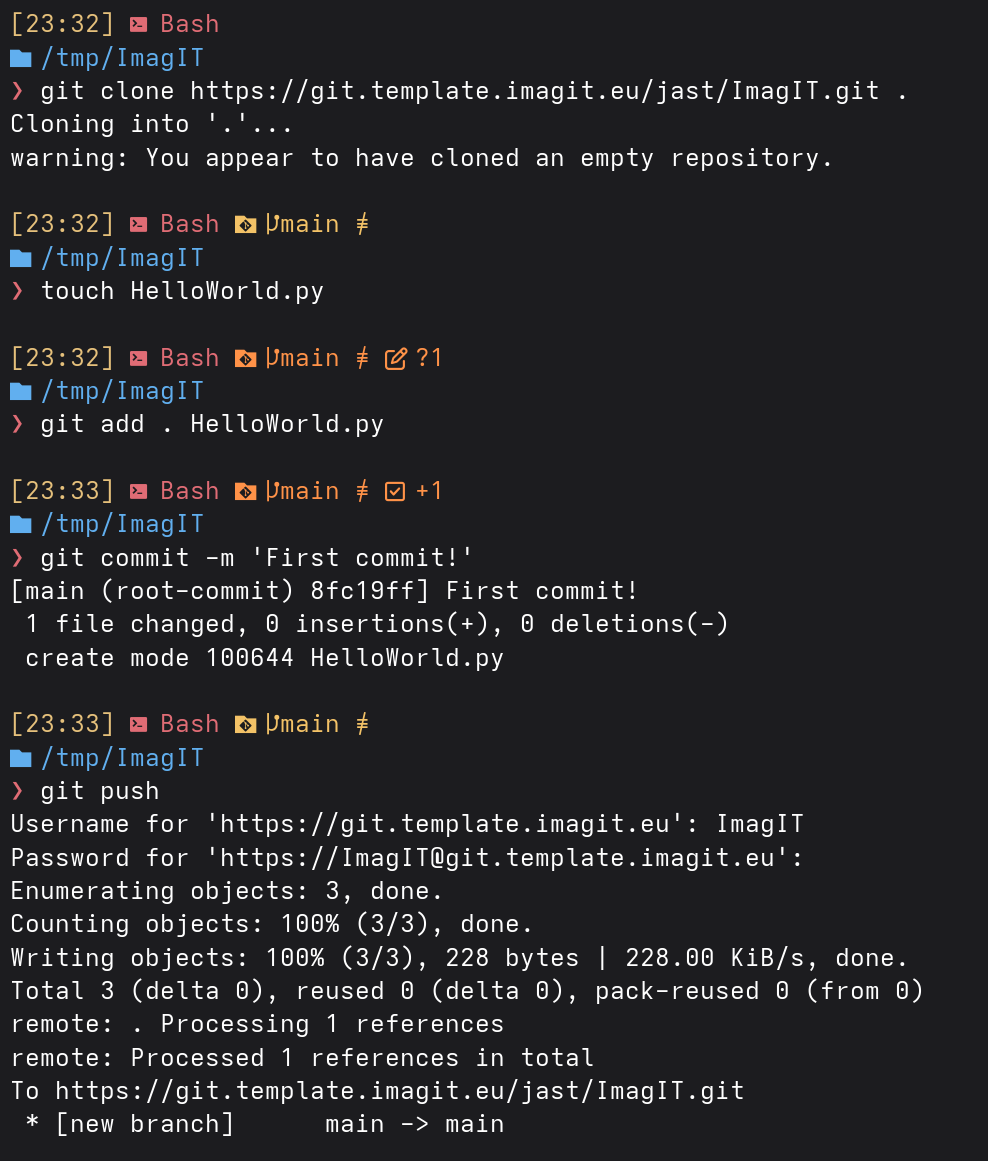
To clone your new repository and work on it locally, press Code and copy the URL while in the repository.
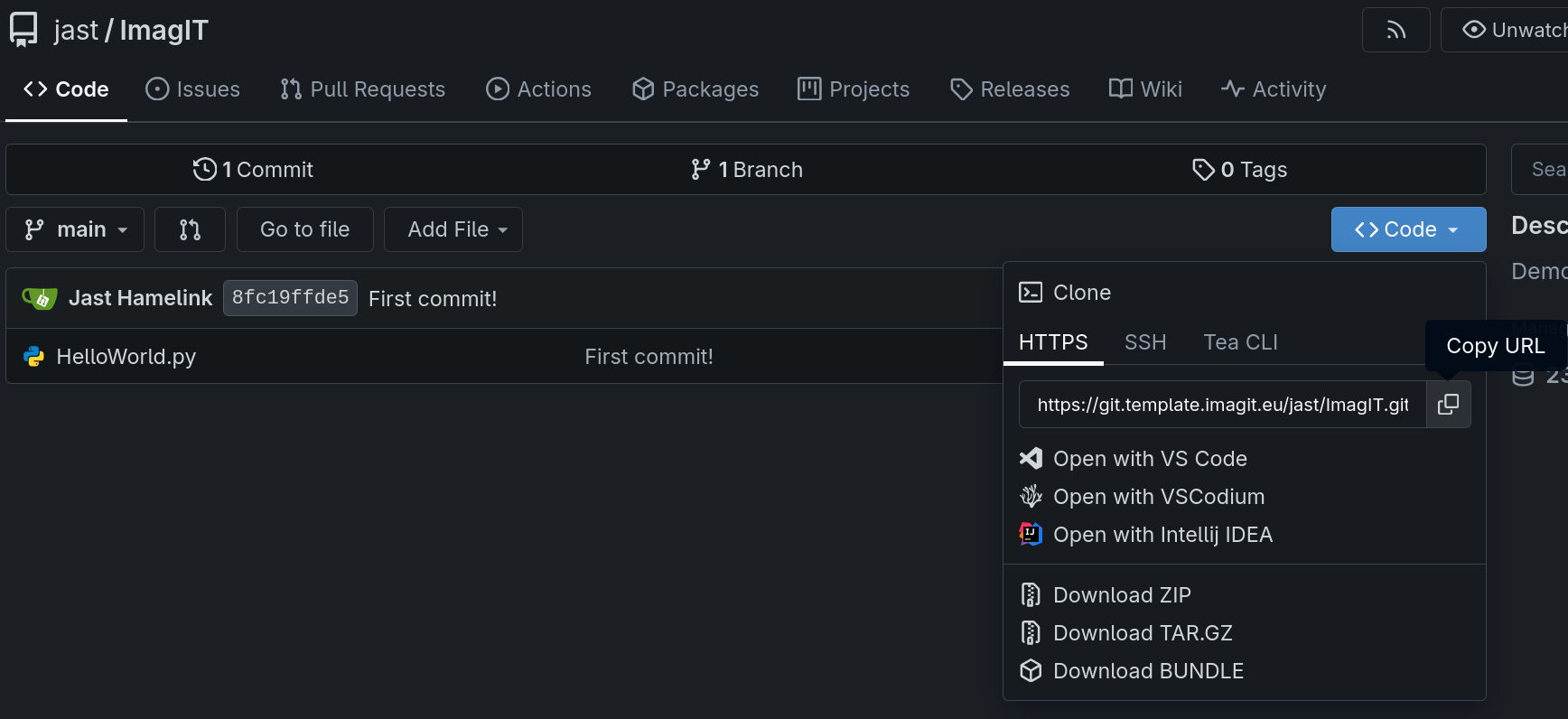
Clone the repository to wherever you prefer.
Because this is a public repository, you will not be prompted for credentials when cloning or pulling. When pushing, you will be prompted for credentials — enter your username and the token you just created as the password.
Push and pull (container) images
For instructions on how to handle all kinds of packages in Gitea, see the Gitea official documentation.
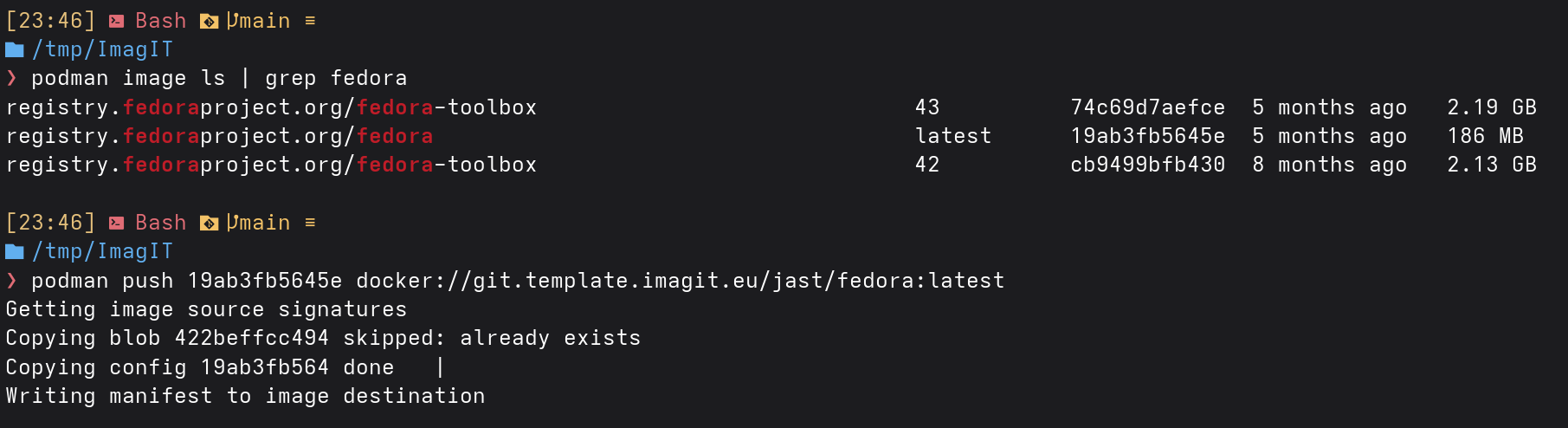
The following push command pushes the image to the user's packages. You can also push to URL/<USERNAME>/<REPOSITORY>.
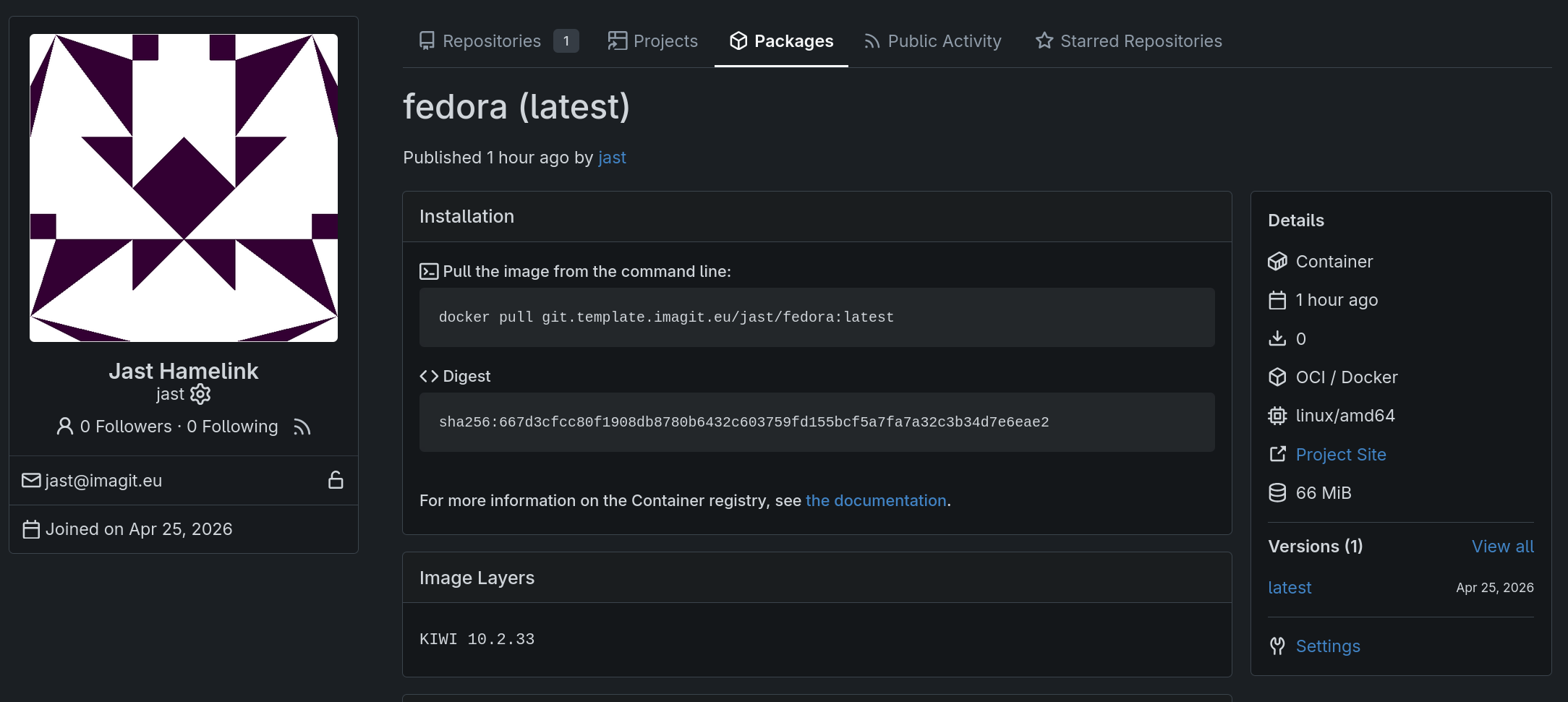
After pushing, your image appears under Packages in your repository. This screen also shows how to pull the image again (after authenticating with docker/podman login).
Build pipelines
The ability to run pipelines (Gitea Runners) for the shared platform will be made available at a later stage. Until then, you can bring your own runner (BYOR).
No comments to display
No comments to display