
Password Management - Vaultwarden
Vaultwarden is your password manager — like the password saver built into your browser, but safer and available on all your devices. It stores your logins, cards and notes end-to-end encrypted, and it is hosted in Europe. You reach the web vault at vault.solo.imagit.eu, which is also linked from your dashboard.
Log in to the web vault
- Go to vault.solo.imagit.eu and bookmark it.
- Choose to log in with your ImagIT account. You are taken to the ImagIT login automatically — there is no separate Vaultwarden password to remember.
- Once you are signed in, you land in your vault.
Set a master password
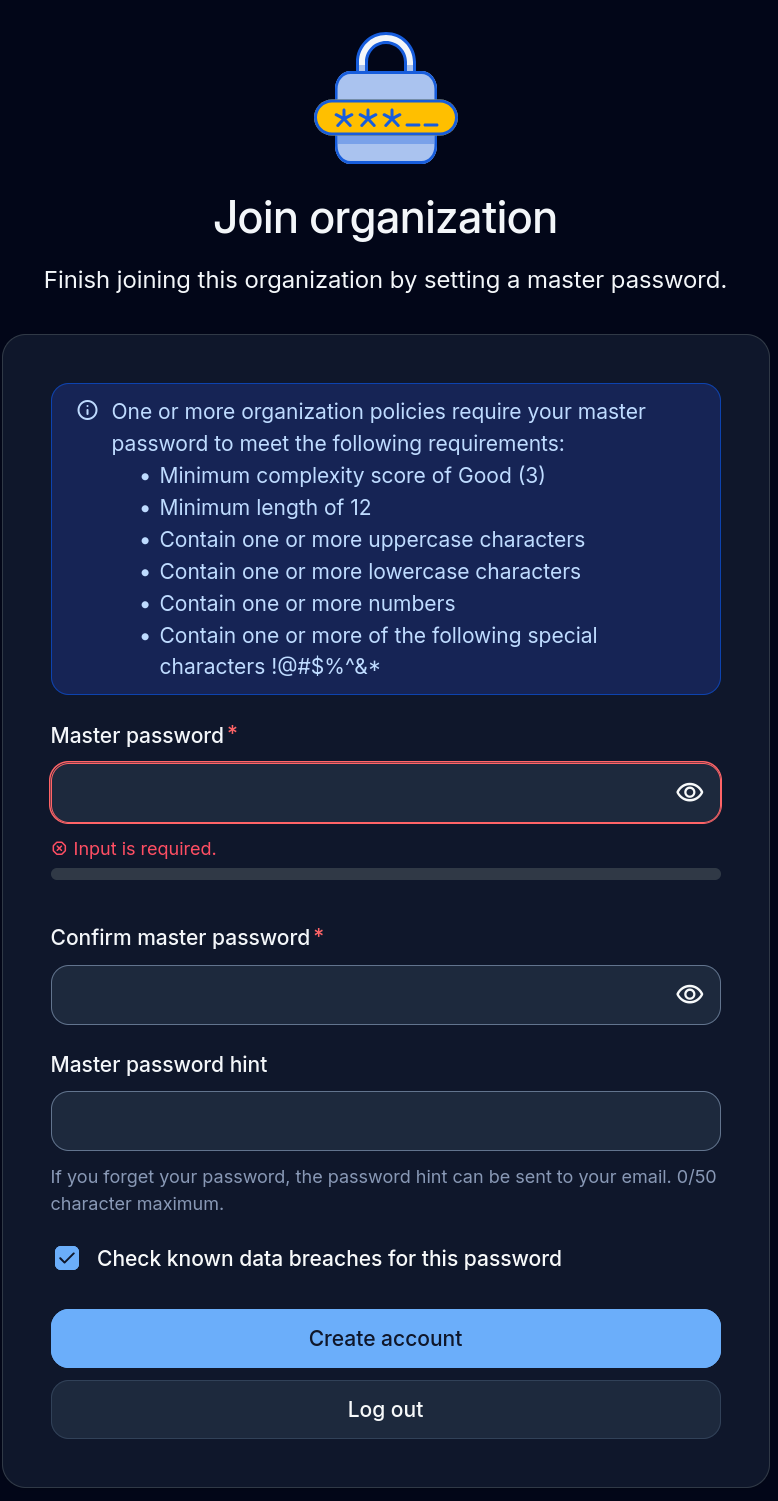
The first time you sign in, you create a master password. This password protects and unlocks your vault, and it is separate from your ImagIT login.
Important: your master password is the key to your vault and cannot be recovered — not even by us. Store it somewhere safe, such as your memory plus a written copy in a secure place.
Install the apps
The apps make Vaultwarden far more useful: they fill in your passwords for you and keep everything in sync. Install the Bitwarden apps, point them at this server, and log in with your ImagIT account.
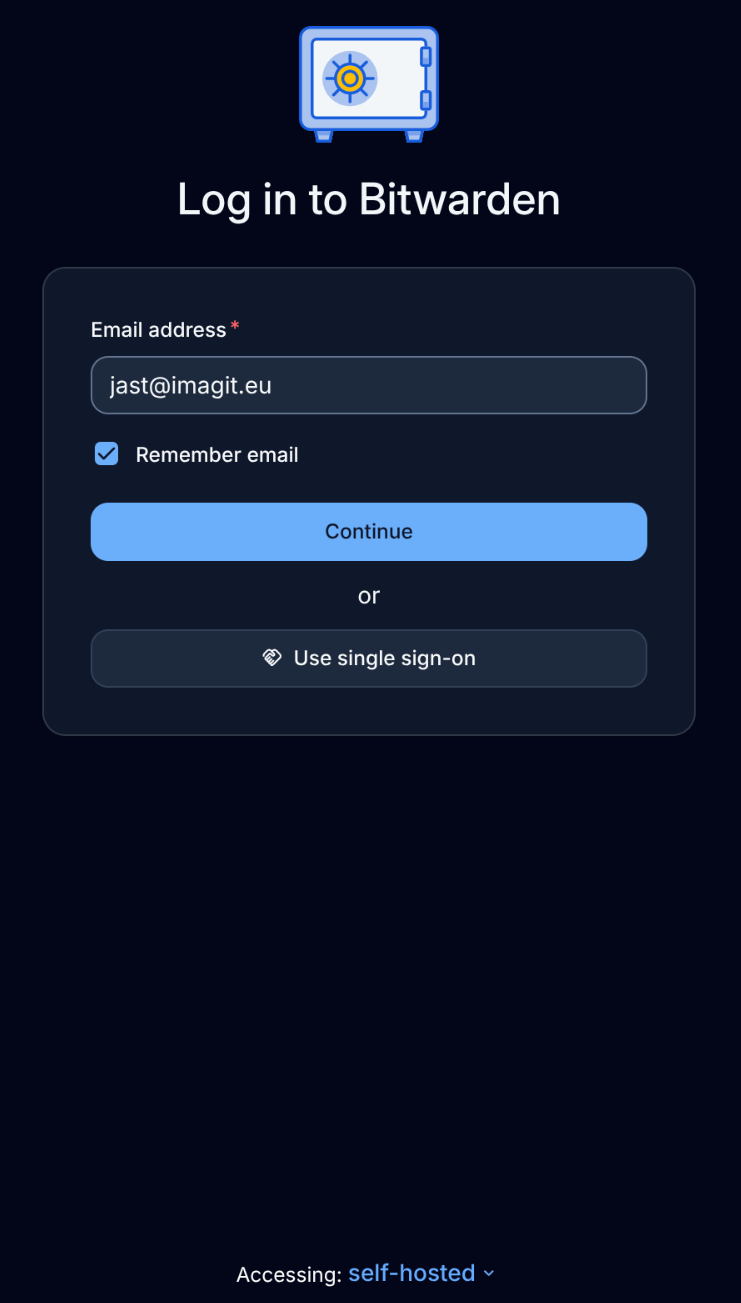
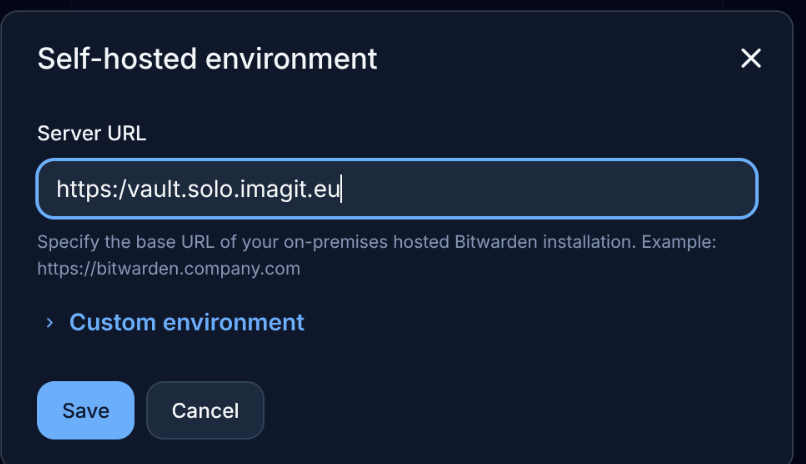
For every app, set the server address first:
Settings → Self-hosted environment → Server URL: https://vault.solo.imagit.eu
Browser extension (Chrome, Firefox, Edge, Safari)
- Install the "Bitwarden" extension from your browser's add-on store.
- Open the extension's settings, set the server URL above, save, and log in with your ImagIT account.
Mobile app (iOS, Android)
- Install the "Bitwarden" app from the App Store or Google Play.
- On the login screen, set the server URL above, then log in with your ImagIT account.
Desktop app (Windows, macOS, Linux)
- Download and install the "Bitwarden" desktop app from bitwarden.com/download.
- Set the server URL above on the login screen, then log in with your ImagIT account.
Save and use your items
- Add an item: click New and choose the type — login, card, identity or note. Fill in the details and save.
- Generate strong passwords: use the built-in generator when creating any new account.
- Autofill: the extension and mobile app can fill in your logins on websites and apps for you.
Tips
- Coming from another password manager? Use the import option in the tools/settings to bring your existing passwords across.
- Lock vs. log out: locking keeps your vault on the device but asks for your master password again; logging out removes it. Locking is usually what you want.
No comments to display
No comments to display